

































Getting started
Getting started
Install Conserio, sign in with your company account and work with several companies at once.
Applies to: macOS, Windows
binadit Conserio is the chat of Binadit Workspace: channels, direct messages and threads, with Meet, Drive and Calendar built in. You can use the accounts of several companies at the same time, in one app.
Install
Download Conserio for your computer from the downloads page on binadit.work.
- macOS: macOS 12 or later. Open the
.dmgfile and drag binadit Conserio to the Applications folder. - Windows: Windows 10 or 11. Run the installer. Conserio installs for your user only, so you do not need administrator rights.
There is nothing to configure: Conserio fetches everything it needs to know about your company when you sign in.
Add your account
On first start, Conserio asks for your company e-mail address.
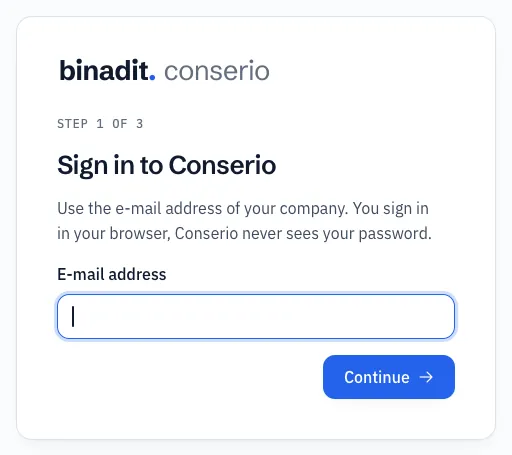
- Enter your e-mail address and choose Continue. Conserio looks up which company and which server the address belongs to.
- Your browser opens your company’s sign-in page. Sign in the way you do for your mail. Conserio never sees your password.
- Back in Conserio you see Add this account? with the name, address and company your browser actually signed in with. If that is right, choose Add account.
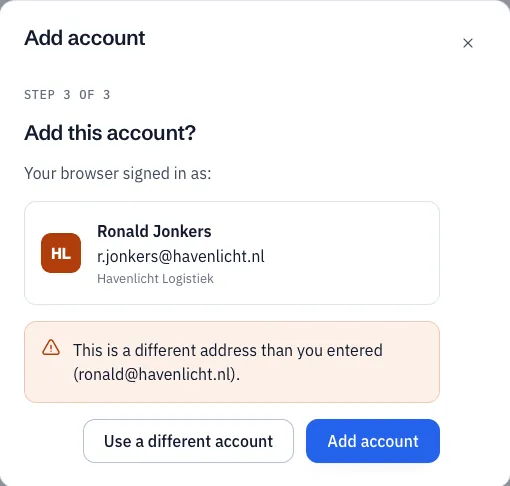
If your browser signed in with a different address than the one you entered, Conserio tells you. Choose Use a different account and start again.
The first time, Conserio fetches your channels and conversations. While it does, the sidebar shows Syncing for the first time.
If your browser does not return to Conserio
Sometimes the browser cannot hand you back to the app after signing in. Under Your browser does not return to Conserio?, choose Sign in with a code. Conserio shows a code. Choose Open the page and enter the code on the page that opens. You can also do that on another device, such as your phone.
Messages during sign-in
| What you see | What it means |
|---|---|
| No binadit Workspace found for your domain | The address does not belong to a company in Workspace. Check the address. |
| Conserio is not enabled for your company | Your company uses Workspace, but Conserio is not switched on yet. Ask your administrator. |
| No connection | Conserio cannot reach the server. Check your network and try again. |
Work with several companies
If you work for more than one company, add each account. All accounts stay connected at the same time, so you miss nothing at one company while you work at another.
- Choose + (Add account) at the bottom of the account bar, or choose the company name in the sidebar and then Add account.
- Switch companies by clicking a logo in the account bar, or with
Cmd+1toCmd+9on macOS andCtrl+1toCtrl+9on Windows. The order is the order of the account bar. - All, at the top of the account bar, collects the direct messages and mentions of every account. You can reply there without switching companies.
- Every notification names the company, so you know where a message comes from.
- The companies stay separate: nothing from one company is visible to another.
Removing an account is described in Devices and signing out.