

































Working in Conserio
Channels and conversations
Create, browse, join, leave and archive channels, the topic and the members, notifications per channel, your own sections and new conversations.
Applies to: macOS, Windows
A channel is for a topic, a team or a customer. A direct message is a conversation with one person, a group conversation one with a few people.
- Public channels (
#) can be found and joined by anyone in your company. - Private channels (lock) are visible only to their members.
- #algemeen (general) has everyone in the company. You cannot leave or archive that channel.
Create a channel
Choose the pencil (New) at the top of the sidebar, then Create channel.
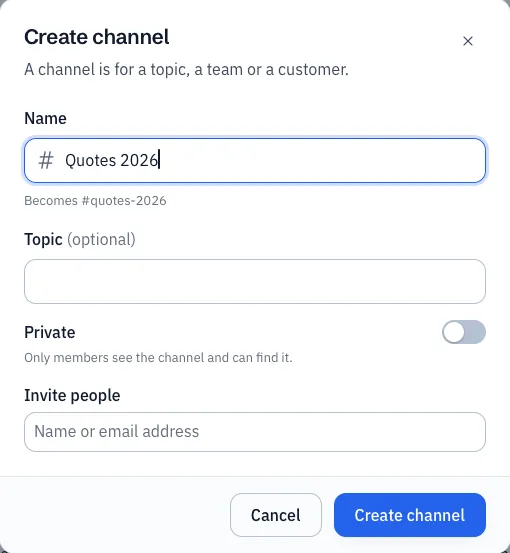
- Name: lower-case letters, digits,
-and_, no spaces, at most 80 characters. If you type capitals or spaces, Conserio shows what the name becomes, for example Becomes #quotes-2026. - Topic (optional): a short line shown at the top of the channel.
- Private: only members see the channel and can find it.
- Invite people: search by name or e-mail address.
Choose Create channel. You are then the Channel manager. Your administrator can decide that only administrators may create channels.
Browse and join channels
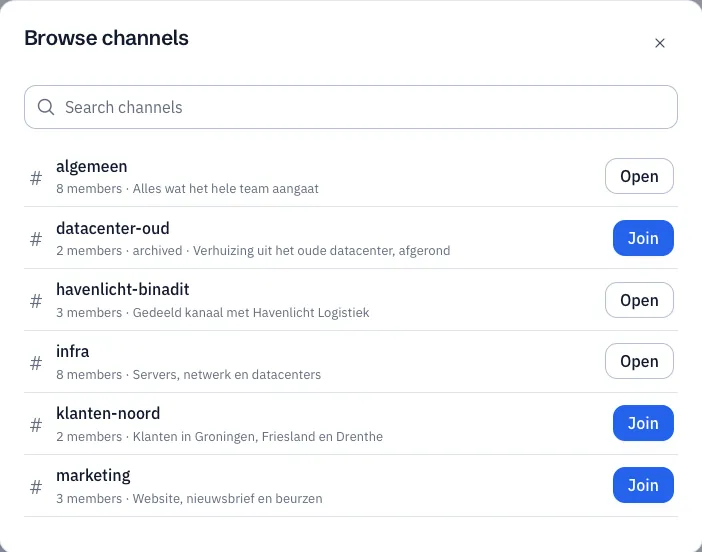
Choose New, then Browse channels. You see the public channels of your company, with the number of members and the topic. Search with Search channels. Choose Join, or Open for a channel you are already in. An archived channel is listed too, marked archived.
Channel details
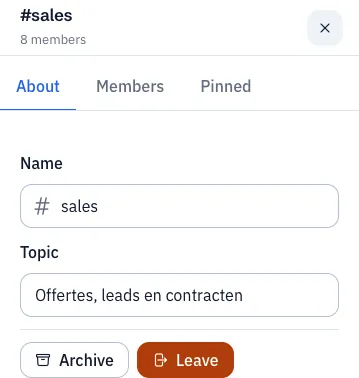
Choose Details (i) at the top right, or the number of members. Channel details opens on the right with three tabs.
About
- Name: only the channel manager or an administrator can change the name. Then choose Rename.
- Topic: every member can change the topic. Then choose Save topic.
- Archive: only the channel manager or an administrator. Nobody can write in it any more; the messages stay readable. Bring back makes the channel active again.
- Leave: the channel disappears from your sidebar. You can find a public channel again under Browse channels.
- In #algemeen there is no Leave or Archive; the channel details explain why.
Members
- The list of members, with Channel manager next to whoever manages the channel. Click a name to send that person a direct message.
- Add people: in a public channel every member can add people, in a private channel only the channel manager or an administrator. Choose the people, then Add.
- The cross next to a name removes someone from the channel. Only the channel manager or an administrator can do that.
Pinned: the pinned messages. Click a message to go to it.
Notifications and place in the sidebar
The bell at the top right of a conversation shows how you get notified and opens the Notifications and sidebar menu.
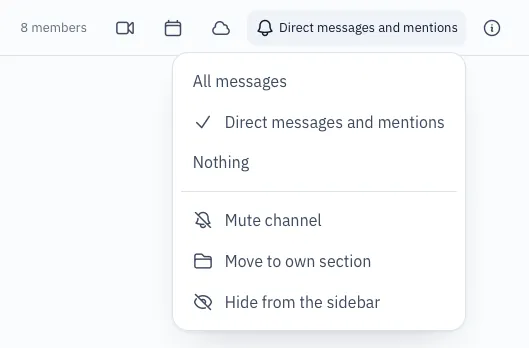
- All messages, Direct messages and mentions or Nothing: when this conversation notifies you.
- Mute channel: the conversation goes quiet in the sidebar, with a crossed-out bell instead of a number. Unmute channel sets it back.
- Move to own section: puts the conversation in a section with a name you choose, such as Customers. Conversations with the same section name are shown together. Back to the fixed section takes it out.
- Hide from the sidebar: the conversation is no longer in your sidebar, but you stay a member.
Open it with quick switching (
Cmd+KorCtrl+K) or search, and choose Show in the sidebar there.
These choices apply on all your devices.
A new conversation
Choose New, then New conversation, or press Cmd+N (macOS) or Ctrl+N (Windows). Search
for people by name or e-mail address.
You find everyone in your company, also people who have never opened Conserio. If you send such a
person a message, it is waiting for them as soon as they open Conserio for the first time (and if
the mail digest is on, they get an email about it). The same goes for Add people and for
mentioning with @.
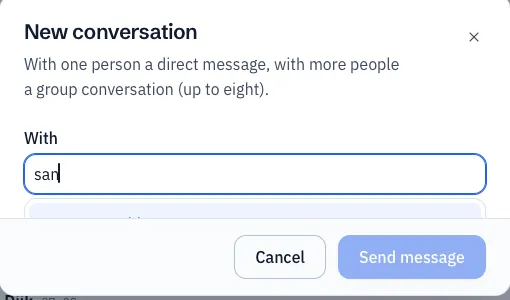
- With one person it becomes a direct message: Send message.
- With more people it becomes a group conversation: Start group conversation. You can choose up to eight people.
If the conversation already exists, Conserio opens it. The people in a direct message or group conversation are fixed: you cannot add anyone to it. You can leave a group conversation, with Leave in its details; the others carry on together. A direct message cannot be left.