
































Getting started
The screen
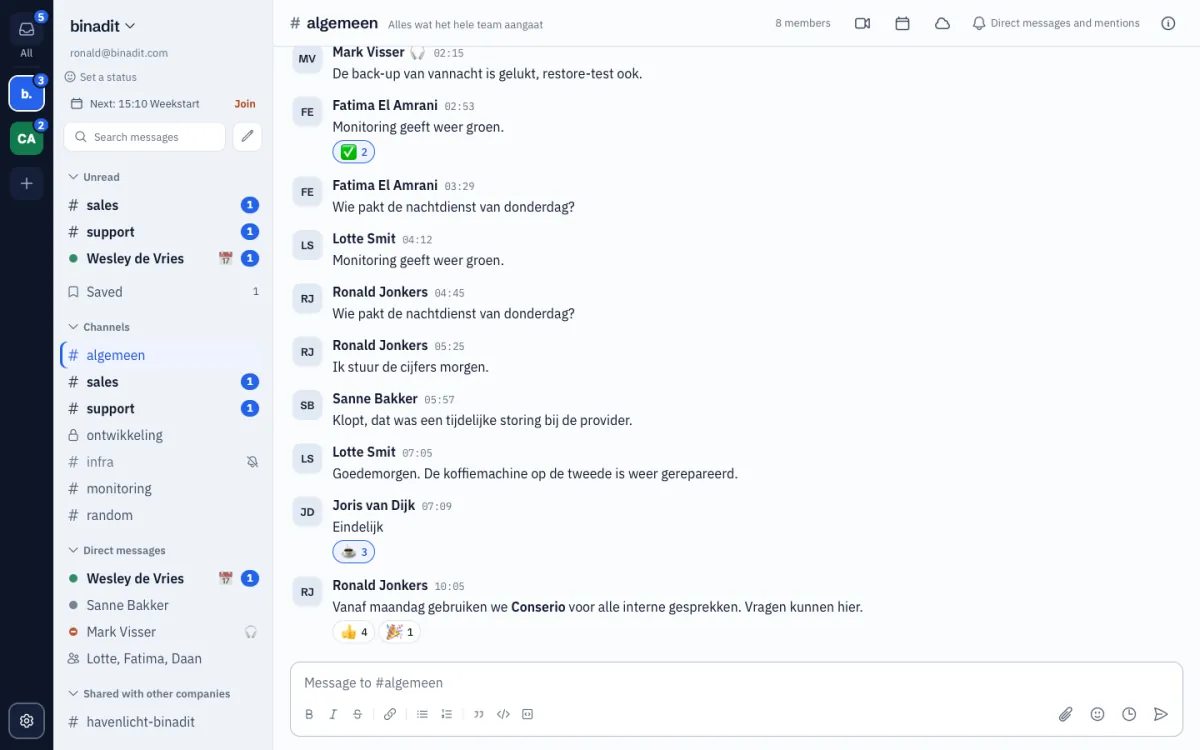
The account bar, All, the sidebar and its sections, the conversation and the panel on the right.
Applies to: macOS, Windows
This manual is available in English and Dutch.
The Conserio window has four parts. From left to right: the account bar, the sidebar, the conversation and, when you open it, a panel for a thread or the channel details.
The account bar
The dark bar on the far left.
- All is at the top. The number is the count of mentions across all your accounts.
- Below it is a logo per company. A number is the count of mentions at that company; a dot means something is unread.
- A faded logo means Conserio is not connected to that company. Point at the logo to see why: Offline, Connecting or Signed out.
- + adds an account.
- The gear at the bottom opens Preferences.
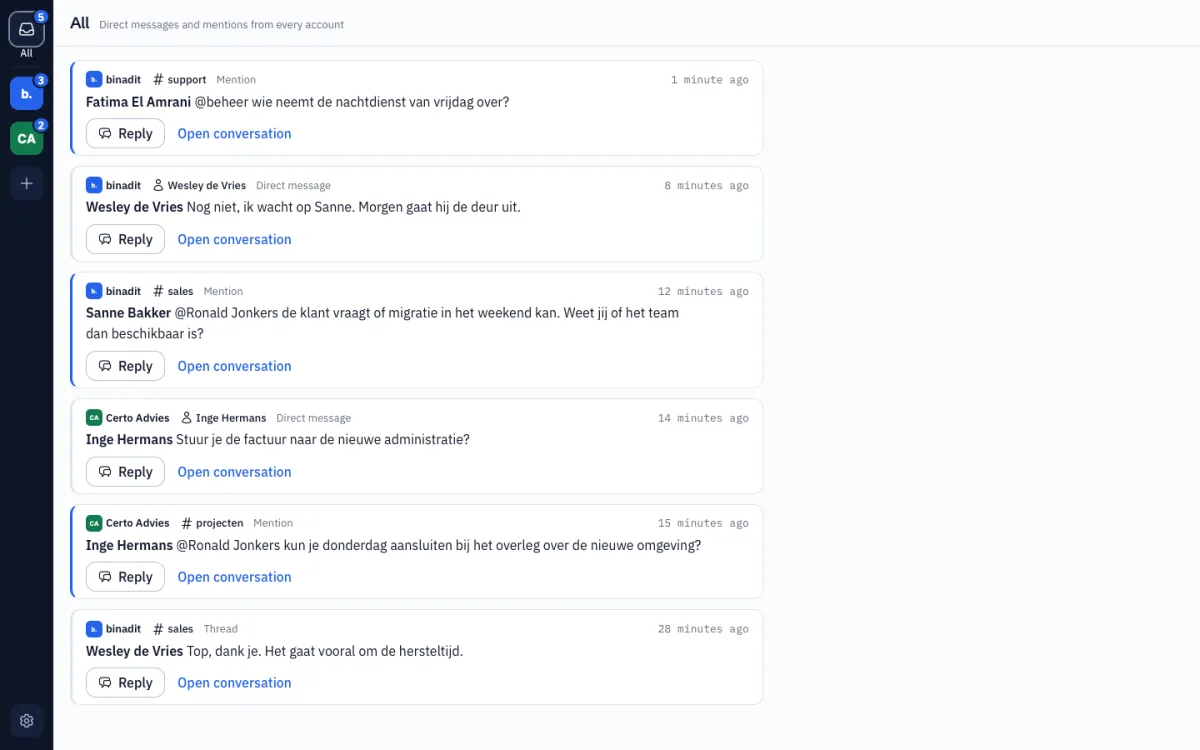
All
All shows the direct messages, mentions and new thread replies of all your accounts, newest first. Each message shows the company, the conversation, the kind (Mention, Direct message or Thread) and the time.
- Reply opens a field under the message. Your reply goes to the right company and conversation without switching. Conserio confirms it with Sent to and the company name.
- Open conversation takes you to the message in its channel or thread.
The sidebar
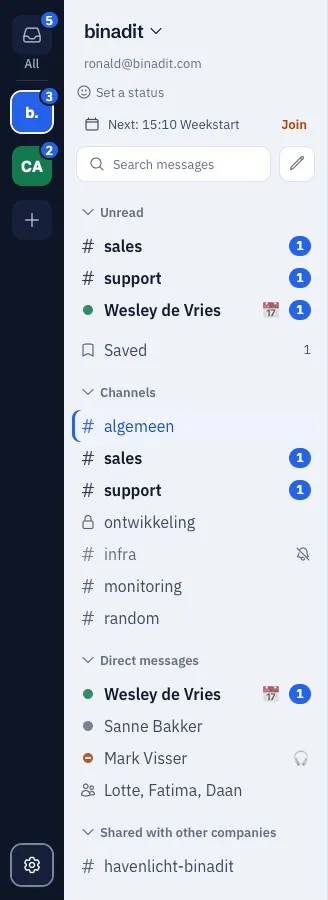
At the top of the sidebar:
- The company name with an arrow opens the account menu: Set a status, Preferences, Add account and Sign out.
- Your e-mail address, with your status below it. Without a status it says Set a status.
- Next: with the time and title of your next appointment from your calendar. If the appointment has a Meet link, Join is next to it.
- Search messages opens search.
- The pencil (New) opens a menu with New conversation, Create channel and Browse channels.
Below that are your conversations, in sections:
| Section | What it holds |
|---|---|
| Scheduled | Messages that will be sent later. Only shown when something is scheduled. |
| Unread | Conversations with new messages. Only shown when something is unread. |
| Saved | Messages you saved, with the count. |
| Channels | The channels you are a member of. |
| Direct messages | Conversations with one person and group conversations. |
| Your own sections | Sections you make yourself, see Channels and conversations. |
Click the name of a section to collapse or expand it.
What the signs mean:
#is a public channel, a lock a private channel, two people a group conversation. The same signs appear in All, Saved, Search and Go to, where one person stands for a direct message.- A direct message has a dot for the other person’s presence: filled green is active, filled grey is away, an open ring is offline.
- A name in bold has unread messages. A number is the count of mentions of you.
- A pencil means you have a draft there.
- A crossed-out bell means you muted the conversation.
Drag the edge of the sidebar to make it wider or narrower (240 to 320 pixels). Conserio remembers the width. With the keyboard: focus the edge and use the left and right arrows.
The conversation
At the top are the name of the channel or person and the topic. The buttons are on the right:
| Button | What it does |
|---|---|
| pinned (with a number) | Shows the pinned messages. Only shown when something is pinned. |
| members (with a number) | Shows the members of the channel. |
| Camera (Start Meet) | Starts a Meet call, see Calls with Meet. |
| Calendar (Plan a meeting) | Plans a meeting with the members, see Calendar. |
| Cloud (Choose a file from Drive) | Shares a file that is already in Drive, see Files. |
| Bell (Notifications and sidebar) | Notifications for this conversation and its place in the sidebar. |
| i (Details) | Opens the channel details. |
In the timeline:
- A line with Today, Yesterday or a date separates the days.
- The New line sits above the first message you had not read yet.
- Jump to first unread and Back to latest appear when you are far from that place.
- Below the timeline you see who is typing.
- A message that mentions you has a blue stripe on the left.
The message field is at the bottom, see Messages.
The panel on the right
A thread or the channel details open in their own panel on the right. One panel is open at a
time: a thread replaces the channel details and the other way round. Close the panel with the
cross or with Esc.
Closing the window
When you close the window, Conserio keeps running and your notifications keep coming. The icon sits in the menu bar (macOS) or the system tray (Windows). On macOS the number of mentions is shown next to the icon and on the Dock icon. On Windows you see the number when you point at the icon.
The icon has a menu with Open binadit Conserio, Preferences and Quit. Quit closes Conserio completely.
- macOS: click the icon to bring the window back; the menu is under the right mouse button.
- Windows: click the icon for the menu, double-click it to bring the window back at once.