

































Working in Conserio
Messages
Sending and formatting, code blocks, mentions, emoji, threads, reactions, editing, quoting, forwarding, pinning, saving, drafts and sending later.
Applies to: macOS, Windows
This manual is available in English and Dutch.
Send
Type in the field at the bottom of the conversation, for example Message to #sales, and press
Enter. Shift+Enter starts a new line. The paper plane button also sends.
Your message appears in the timeline at once. Without a connection it waits and goes out by itself when the connection is back. If sending fails, it says Not sent. with Try again and Delete.
Formatting
Below the message field is a formatting bar. Select text and choose a button, or use the shortcut. You can also type the characters yourself.

| Button | Type it | macOS | Windows |
|---|---|---|---|
| Bold | **text** | Cmd+B | Ctrl+B |
| Italic | _text_ | Cmd+I | Ctrl+I |
| Strikethrough | ~~text~~ | Cmd+Shift+X | Ctrl+Shift+X |
| Link | [text](https://...) | Cmd+Shift+U | Ctrl+Shift+U |
| Bulleted list | - at the start of the line | Cmd+Shift+8 | Ctrl+Shift+8 |
| Numbered list | 1. at the start of the line | Cmd+Shift+7 | Ctrl+Shift+7 |
| Quote | > at the start of the line | Cmd+Shift+9 | Ctrl+Shift+9 |
| Code | `code` | Cmd+E | Ctrl+E |
| Code block | three backticks on a line of their own | Cmd+Shift+C | Ctrl+Shift+C |
Links in a message open in your browser. A link to a message in Conserio opens in the app, see Link to a message.
Code blocks
Put code between two lines with three backticks. Put the language right after the first backticks
for colouring, for example ```sql.
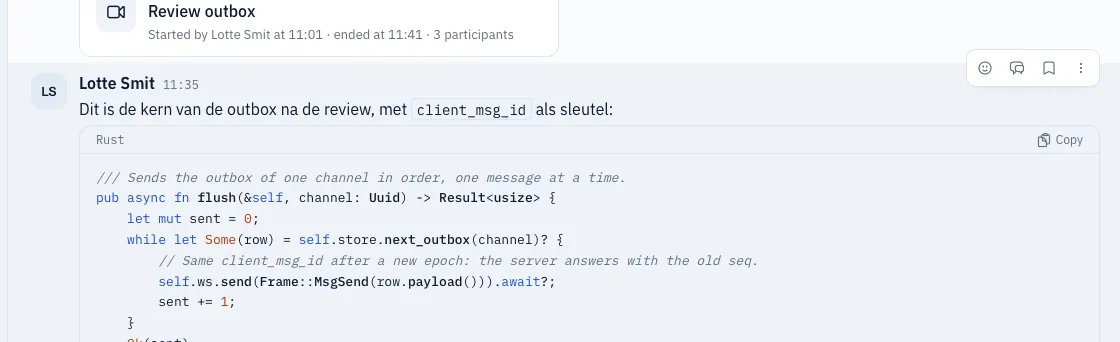
- Conserio colours, among others, Rust, TypeScript and JavaScript, Python, Go, Java, Kotlin, Swift, C, C++, C#, PHP, Ruby, SQL, shell, JSON, YAML, TOML and INI, HTML and XML, CSS, diff and Dockerfile.
- Above the block are the language and Copy.
- Long lines scroll sideways. A block of more than 15 lines collapses, with Show all and the number of lines.
While typing:
- Inside an open code block,
Enterstarts a new line and keeps the indentation. To send, useCmd+Enter(macOS) orCtrl+Enter(Windows). Tabindents,Shift+Taboutdents.- When you paste a few lines that look like code, Conserio says This looks like code. Choose Format as code block, or the cross to keep it as text.
Mentions
Type @ and the first letters of a name. You can mention anyone in your company, also people who
have never opened Conserio. Choose someone from the list with the arrows and Enter
or Tab, or click. Esc closes the list.

@herenotifies everyone who is active in the conversation right now.@channelnotifies everyone in the channel.- The Dutch
@hierand@kanaalwork too, whatever you type: the app shows the word in its own language, and a colleague using the app in Dutch sees@hierand@kanaal. - A user group, such as
@beheer, notifies every member of the group. Your administrator manages groups. #with the first letters of a channel puts#channelnamein your message; once sent it is a link to that channel. Only that exact word becomes a link: the same name elsewhere in your text stays plain text.
A message that mentions you, or a group you are in, has a blue stripe on the left and counts in the number next to the conversation.
Emoji
The smiley button in the message field opens the emoji picker, with search and the groups Frequently used, People, Nature, Food, Activity, Objects and Symbols.
Working with a message
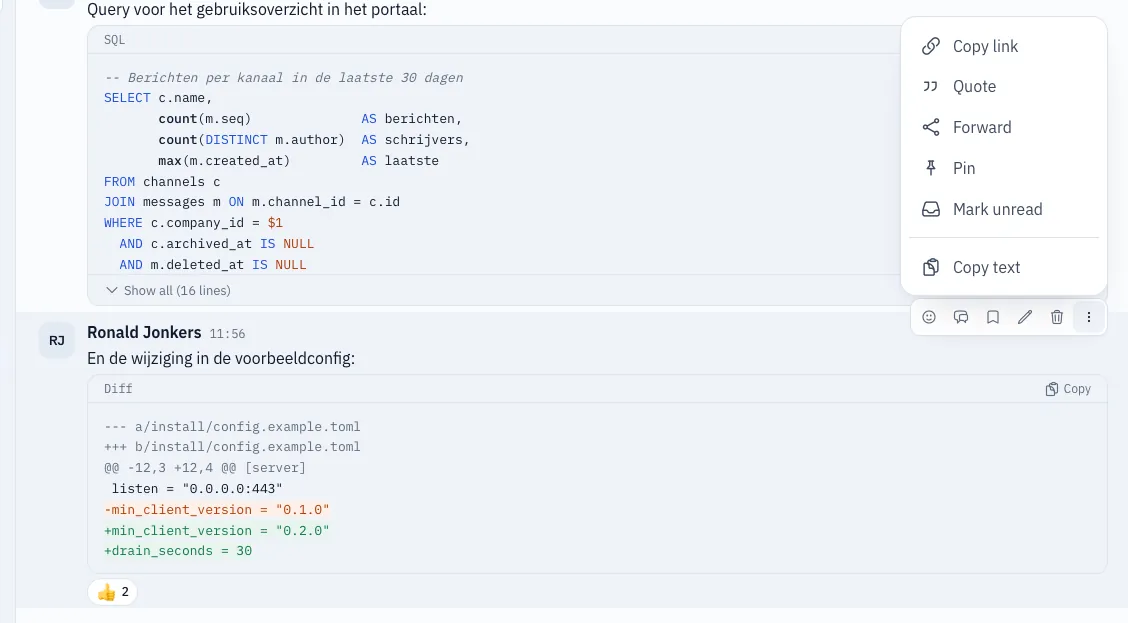
Point at a message. A bar with buttons appears at the top right:
| Button | What it does |
|---|---|
| Add reaction | An emoji under the message. |
| Reply in thread | Opens the thread on the right. |
| Save | Keeps the message, with or without a reminder. |
| Edit | Only for your own messages. |
| Delete | For your own messages. Channel managers and administrators can also delete other people’s messages. |
| More actions | Copy link, Quote, Forward, Pin, Mark unread and Copy text. |
Reactions
Choose Add reaction and an emoji. Click a reaction that is already there to add the same one or remove yours. Point at a reaction to see who gave it.
Threads
Reply in thread opens the thread in the panel on the right, with its own field Reply. It has the same buttons as the channel’s message field: formatting, attaching a file, emoji and sending later. Under the message in the channel you see the number of replies, who replied and Last reply. New means there are replies you have not read yet. New replies in a thread you take part in also show up in All.
Edit and delete
- Edit opens the message in a field.
Entersaves,Esccancels. Edit your last message quickly with the up arrow in an empty message field. - An edited message gets (edited). Your company can set a period within which you may edit.
- Delete asks for confirmation first. The message is removed for everyone; This message was deleted. remains.
Quote
Quote puts the message as a quote in your message field. Type your answer below it and send.
Forward
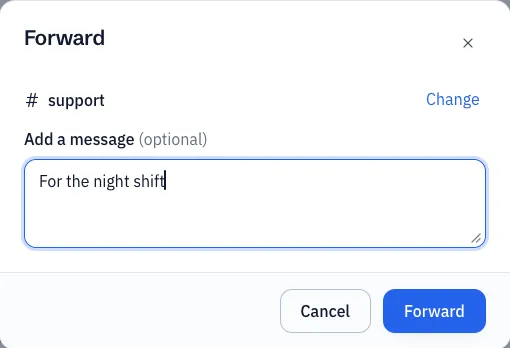
Forward opens a window. Under To, choose a channel or person, optionally type Add a message, and choose Forward. The forwarded message names the sender and the conversation, with a View message link to the original.
Pin
Pin pins a message in the channel. It then shows Pinned, and the channel header gets a button with the number of pinned messages. That opens the list; click a message to go to it. Unpin removes it. This is not possible in an archived channel.
Mark unread
Mark unread sets the conversation back to unread from that message on. The New line moves with it. This also applies on your other devices.
Link to a message
Copy link puts a link to the message on your clipboard. When you paste that link in Conserio, a click opens the message in place in its conversation, also in another account you added. Outside Conserio, in a browser, the link does not open anything yet.
Save with a reminder
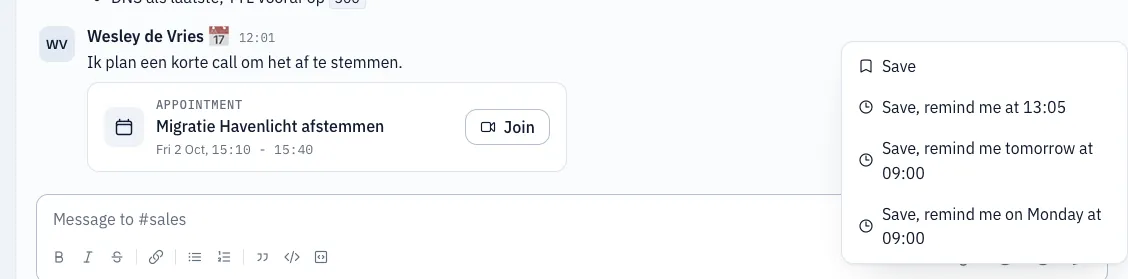
Choose Save on a message. Conserio asks whether you want a reminder:
- Save without a reminder
- Save, remind me at in an hour
- Save, remind me tomorrow at 09:00
- Save, remind me on Monday at 09:00
Saved messages are under Saved in the sidebar. When a reminder is due, that message shows Reminder now and your computer shows a notification with the company name and reminder in the title. If Conserio was closed at that moment, the notification comes as soon as you open Conserio again. Do not disturb applies to reminders too. Remove a message with the cross (Remove from saved) or with the same button on the message. Saved messages are the same on all your devices.
Drafts
What you type and do not send stays in each conversation, also when you quit Conserio. The sidebar then shows a pencil next to the conversation. A draft in a thread is kept too, also after quitting, per thread; it gets no pencil in the sidebar.
Send later
Type your message and choose the clock next to the send button (Send later):
- In an hour
- Tomorrow 09:00
- Monday 09:00
- Other moment: choose a date and time, then Schedule
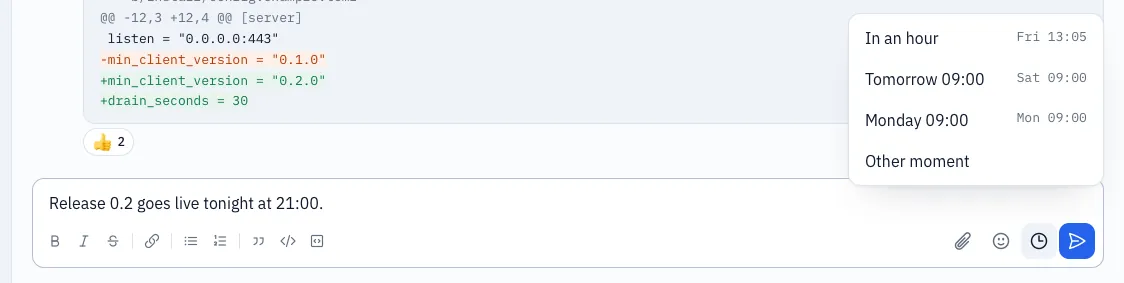
Scheduled messages are under Scheduled at the top of the sidebar. There you choose Send now or Don’t send.
Conserio sends a scheduled message from this computer. If Conserio is not running at that moment, the message goes out as soon as you open Conserio again.
Link previews and images
For a link, Conserio shows a preview with the site name, the title and a short description. If the page has an image, it is shown too. Click the image to see it large; there you also find Open in the browser. Conserio fetches the preview and the image itself, so the site does not see who looks at it.
Cards
Some messages carry a card:
- Meet: a call, with Join while it runs. See Calls with Meet.
- File: a file in Drive, with Open in Drive. See Files.
- Appointment: an appointment from the calendar, with Join, Accept and Decline. See Calendar.