

































Settings
Status and presence
A status with text, emoji and end time, and what the dot next to a name means.
Applies to: macOS, Windows
This manual is available in English and Dutch.
Set your status
Choose your status below your e-mail address at the top of the sidebar, or Set a status in the account menu. You set a status per company.
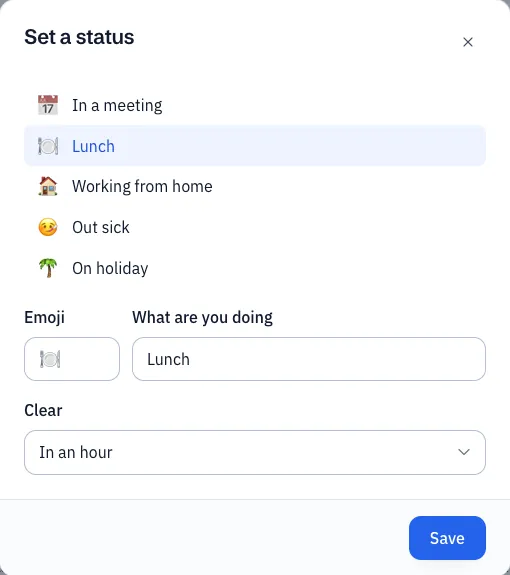
- Choose a quick choice: In a meeting, Lunch, Working from home, Out sick or On holiday. It fills in the emoji, the text and the end time for you.
- Or fill in an Emoji and What are you doing yourself (at most 100 characters).
- Under Clear, choose when the status disappears by itself: Don’t clear, In half an hour, In an hour, Tonight or At the end of the week.
- Choose Save. Clear status removes your status.
Your status is shown at the top of your sidebar, with its end time, and applies on all your devices.
Presence
A direct message has a dot for the other person:
| Dot | Meaning |
|---|---|
| Filled green | Active: Conserio is open and in use. |
| Filled grey | Away: Conserio is open, but has not been used for a while. |
| Open ring | Offline: Conserio is not open anywhere. |
| Orange with a bar | Do not disturb: the other person gets no notifications now. |
Colleagues’ status
A colleague’s status is shown with their name: the emoji next to their name in the sidebar, the whole status next to the name at the top of a direct message, and with the members in the channel details. If someone is in a meeting according to their calendar, it says In a meeting. Point at the name on a message to see the sender’s status.
Your presence comes from all your devices together: if you are active on one, you are active.
Do not disturb is set with the notifications, see Notifications.