

































Working in Conserio
Calendar
Your next appointment in the sidebar, your status from your calendar and planning a meeting from a conversation.
Applies to: macOS, Windows
This manual is available in English and Dutch.
Conserio reads the calendar of your company account. The app on your computer does that itself: the Conserio server cannot access your calendar.
Your next appointment
The top of the sidebar shows Next: with the time and title of your next appointment. If the appointment has a Meet link, Join is next to it. That opens the call in your browser.
Status from your calendar
During an appointment you get no notifications and Conserio sets you to in a meeting. If you do not want that, switch off Status from my calendar in Preferences, tab Notifications. You set it per account.
Plan a meeting
Choose the calendar (Plan a meeting) at the top right of a channel or conversation.
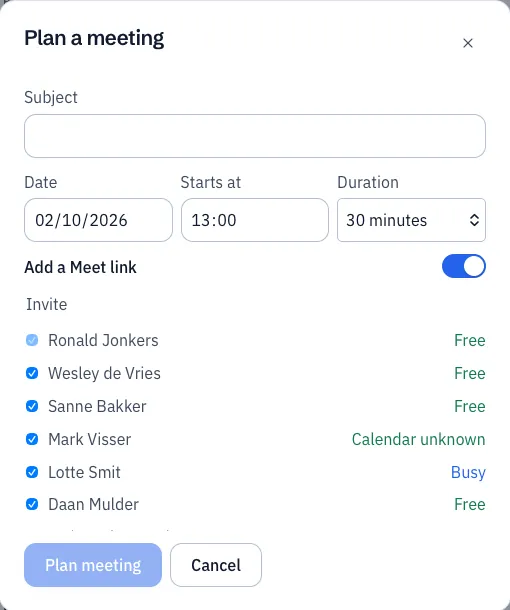
- Fill in the Subject, the Date, Starts at and the Duration (15, 30, 45, 60 or 90 minutes).
- Add a Meet link puts a link to a Meet call in the meeting.
- Under Invite are the members of the conversation, all ticked. Each name shows Free, Busy or Calendar unknown for the chosen time. Untick who does not need to come. You are at the top and stay ticked.
- Choose Plan meeting.
The meeting goes into your calendar. The invitations go out by mail. A card with the meeting appears in the conversation.
The appointment card
An appointment card shows the day and the time, and your answer if you already gave one (Accepted, Declined or Maybe).
- Join opens the Meet link, if the appointment has one.
- Accept and Decline answer the invitation without opening your mail. These buttons only appear when you are invited.